Design And Debugging

Design Tab
As shown above, the menu buttons above are used to switch between Design and Debugging. The Design tab contains the tools used for designing. The Debugging tab contains the tools used to find and fix problems.
In the Design tab:
- New: Adds a new XAML file to the project. When adding these, one of the Sequence Diagram, Flowchart, or State Machine is selected to decide how the XAML file will be added.
- Save: Saves the changes made in the project.
- Run: Runs the .xaml file that is open and displayed in the project.
- Undo: Undoes the last changes made.
- Redo: Reverses the undo actions step by step.
- Cut: Cuts the selected area in the design area.
- Copy: Copies the selected area in the design area.
- Paste: Pastes the previously cut or copied data to the selected location in the design area.
- Export: Exports the process as Nupkg.
- UI Explorer: It is a structure that allows us to select any interface on the computer. Add the extension to your browser for proper operation.
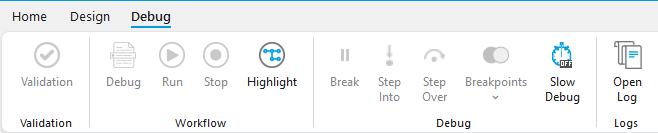
Debugging Tab
In the Debugging tab:
- Validate: Shows if there is any error before running the project.
- Debug: Runs the project in debug mode. It allows the project to wait at breakpoints.
- Run: Runs the project normally.
- Break: Stops the project while it is running (while Debug and/or Run is active).
- Stop: Stops the project.
- Step Into: Allows the stopped process to occur.
- Step Over: Allows the project to move to the next step from where it stopped.
- Breakpoint: Determines where and where the project will wait in debugging mode.
- Slow Debug: Determines the speed of the debugging mode. There are 4 different speeds: 1x, 2x, 3x, 4x.
- Options: Contains options.
- System Log
- Open Log: Opens the folder where the system log is located. All log records are stored here.