Libraries
A library is a reusable structure that contains a collection of activities that perform a specific function.
These libraries, created once for frequently used operations (e.g., file name editing, date formatting, text checking), can be easily used across different projects. This eliminates the need to recreate the same activities each time for similar functions, saving time and ensuring a standardized structure in automation processes.
Developed libraries can be updated as needed and integrated into all connected processes. This facilitates the centralized and sustainable implementation of common business rules, especially in enterprise automations.
Creating a Library

New Library
After clicking the 'Library' button, we can create the library by entering the information we want on the page that appears.

New Library Screen
- Name: The name of the library. It should be entered without any special characters (parentheses, hashtags, spaces, etc.).
- Location: The place where the library will be created. It can be quickly selected from the window that opens by clicking on the 3 dots on the side.
- Description: The description of the library.
After entering the above information, the library is created by clicking on the 'Create' button.
Exporting an Existing Library
The library is created and the necessary processes are added. If it is to be used later, the library must be exported.
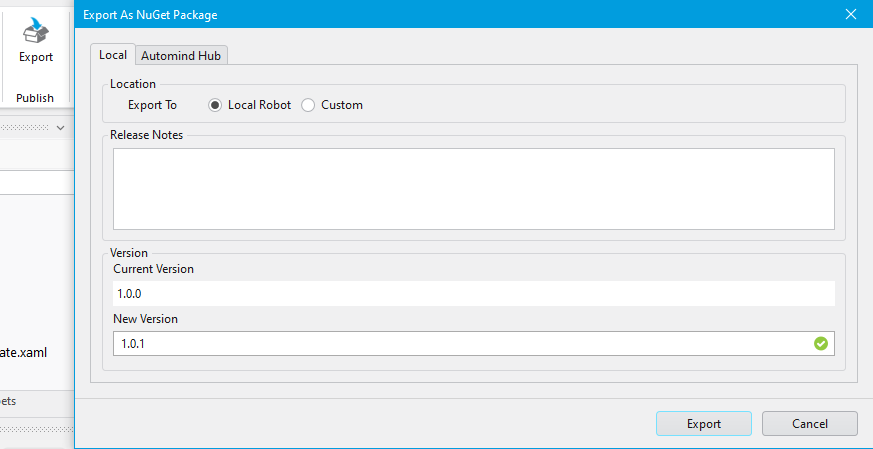
Export Screen
To do this, click on the 'Export' button from the top menu. After the necessary information is entered, the library is exported with the 'Export' button at the bottom of the window.
Installing an Exported Library
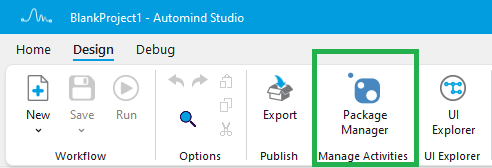
Package Manager
In the project where the library will be used, click the 'Package Manager' button from the top menu.

Package Manager Screen
Click on the 'Third Party Libraries' button.
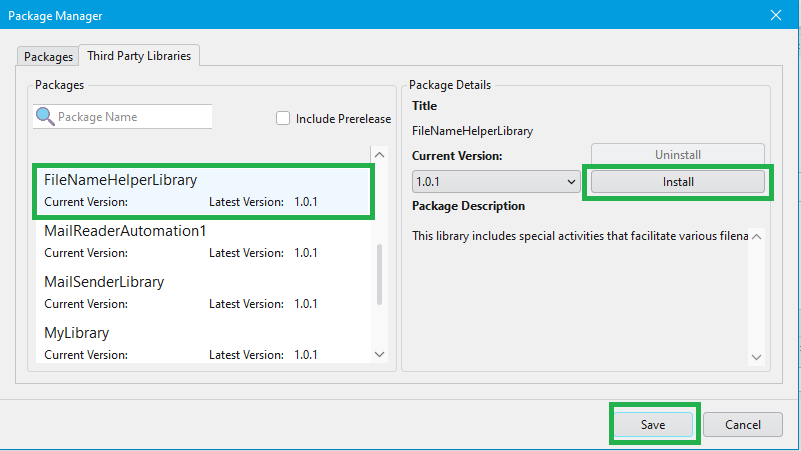
Library List
Select the desired library from the list of libraries. Select the desired version from the details screen on the right and click the 'Install' button. Click the 'Save' button in the bottom right corner of the window to begin the installation process.
Using an Installed Library
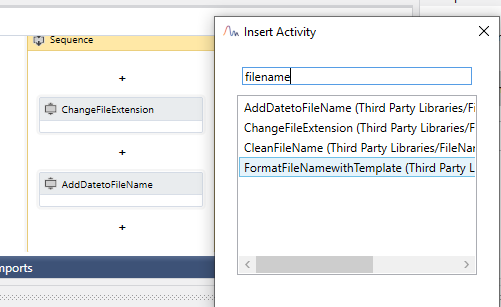
Adding an Activity from the Library Screen
Once the library is installed, you can now search for and use the activity to be added.