Process Templates
A process template is a ready-made outline created to automate a specific job and saved for reuse in similar processes. Thanks to templates, fast and consistent automations can be developed for repetitive tasks without the need to design processes from scratch each time. If necessary, these templates can be adapted to different needs by making adjustments.
Creating Process Template

New Process Template
After clicking the 'Process Template' button, we can create the process template by entering the information we want on the page that appears.
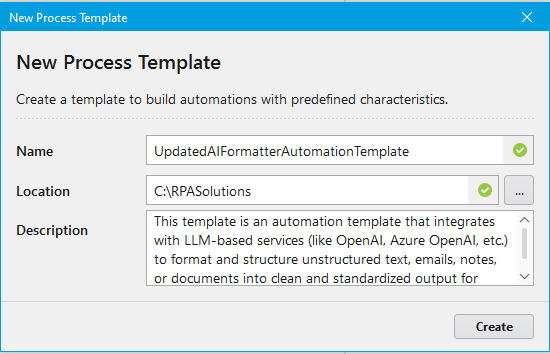
New Process Template Screen
- Name: The name of the process template. It should be entered without any special characters (parentheses, hashtags, spaces, etc.).
- Location: The place where the process template will be created. It can be quickly selected from the window that opens by clicking on the 3 dots on the side.
- Description: The description of the process template.
After entering the above information, the process template is created by clicking on the 'Create' button.
Exporting an Existing Process Template
A template is created and the necessary processes are added. The process template must be exported if it is intended to be used later.
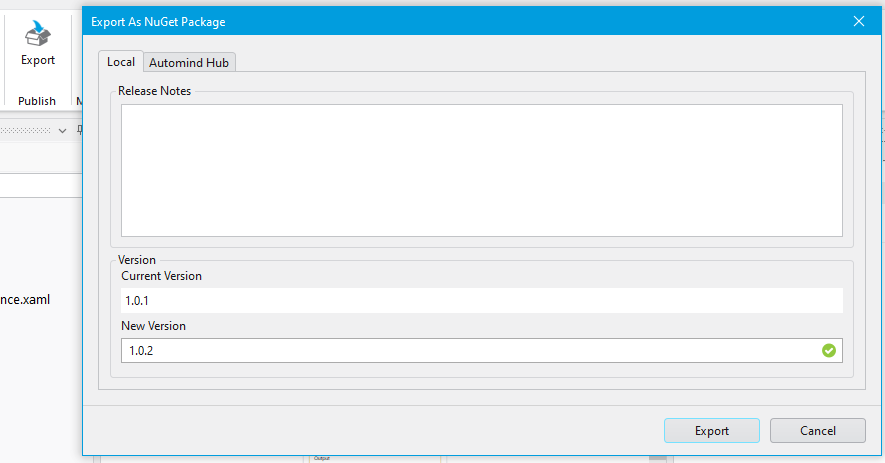
Export Screen
To do this, click on the 'Export' button from the top menu. After the necessary information is entered, the template is exported with the 'Export' button at the bottom of the window.
Using an Exported Process Template
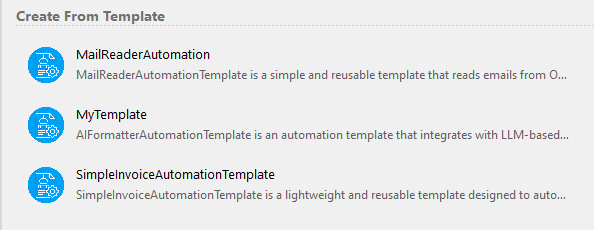
Templates
In order to use an exported template, the template you want to use is selected from the 'Create From Template' section on the main screen.
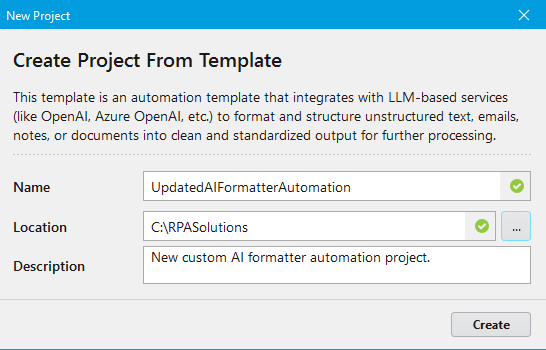
Create New Project From Template Screen
- Name: The name of the project. It should be entered without any special characters (parentheses, hashtags, spaces, etc.).
- Location: The place where the project will be created. It can be quickly selected from the window that opens by clicking on the 3 dots on the side.
- Description: The description of the project.
After entering the above information, the project is created by clicking on the 'Create' button.